Oxygen XML Author 28 delivers a major upgrade to its AI capabilities and productivity tools for content authors and publishers.
It uses the optional Oxygen AI Positron 8.0 to bring more project-aware, "agentic" assistance into everyday XML and DITA work, with new chat modes, AI-powered file creation and refactoring tools, Model Context Protocol integration, and automatic validation and repair of AI-generated XML. Expanded AI model support includes new connectors for Anthropic Claude, Google Gemini, AWS Bedrock, and xAI Grok, alongside the existing OpenAI and Azure OpenAI Service, and support for the latest advanced models.
DITA users benefit from a redesigned DITA Maps Manager, enhanced topic search, and improved handling of DITA-compatible resources. Publishing and WebHelp see usability improvements, new PDF options, and an AI-friendly output format.
Comparison and productivity enhancements include advanced directory comparison, main file management, and flexible validation reporting. Updated add-ons, such as Git Client and Terminology Checker further extend Oxygen’s capabilities.
There are changes in:
AI Enhancements Powered by Oxygen AI Positron
Oxygen XML Author 28.0 integrates Oxygen AI Positron 8.0, so all functionality added in Positron 5.0, 6.0, 7.0, and 8.0 becomes available in this release. The following highlights the most important AI additions for Oxygen XML Author (excluding XML development features such as XSLT, XQuery, or XML Schema editing). For a comprehensive overview, see the complete list of new features introduced in version 8.0 on our website: What's New in Oxygen AI Positron 8.0.
A New Unified Oxygen AI Positron Add-on (Desktop)
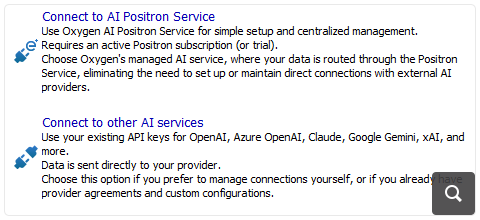
For Oxygen desktop tools, the former Oxygen AI Positron Assistant and Oxygen AI Positron Assistant Enterprise add-ons are now combined into a single Oxygen AI Positron add-on. Non-Enterprise setups gain functionality that was previously available only when connecting to a custom AI provider (such as MCP support), while Enterprise-licensed users can connect both to their own AI provider and to the Oxygen AI Positron Service.
Oxygen AI Positron Available for Eclipse
The Oxygen AI Positron for Eclipse add-on is available for the Oxygen XML Author Eclipse distribution, providing the Oxygen AI Positron view and AI-powered actions inside Eclipse. It can be installed and updated using standard Eclipse update-site mechanisms for a smoother deployment workflow.
Smarter Project Context and Saved Memories
The Generate agent instructions action creates a project-specific context prompt (Markdown file) that captures the structure and conventions of your project and is used in chat and AI actions. You can supplement it with additional context files in the Oxygen AI Positron preferences. When you ask the AI to remember rules about your activity or profile, they are stored as Saved Memories and automatically applied in all future interactions.
Agentic Chat Modes and In-Chat Tools
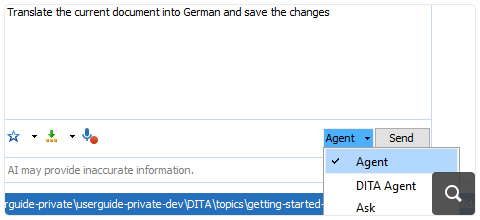
The Chat view provides three chat modes: Agent, DITA Agent, and Ask, all of which automatically use your current project, document, and (for DITA) map context. New tools such as search_in_project, grep_project, list_dir, and edit_document, together with XML refactoring tools available directly in chat, allow the AI to explore your project, search, refactor, and perform precise edits as part of agentic workflows.
Model Context Protocol Integration
Oxygen AI Positron can connect to Model Context Protocol (MCP) servers, loading tools defined in MCP configuration files so they can be invoked by the AI from chat and custom AI actions. This lets agentic workflows call external tools and data sources in a controlled way, alongside the built-in Oxygen AI Positron tools. Oxygen XML can also act as an experimental local MCP server, allowing compatible desktop AI assistants (such as Claude Desktop) to start Oxygen and use its validation, editing, and XML refactoring capabilities as MCP tools.
AI-Driven File Creation, DITA Conversion, and Documentation Drafts
AI-powered New File Creation lets you provide a prompt and attach files when creating a new document, with the generated content shown in the Oxygen AI Positron view, where you can continue refining it. Using a save_document callback, Oxygen AI Positron can create or update topics while you review changes in the visual file comparison tool. AI-based DITA conversion and analysis actions can convert topics to Task, Concept, Reference, Troubleshooting, or Glossary and split large topics into smaller ones, while documentation drafts can be generated from configuration files that optionally reference external text or document files.
Automatic Validation and Correction of AI-Generated XML
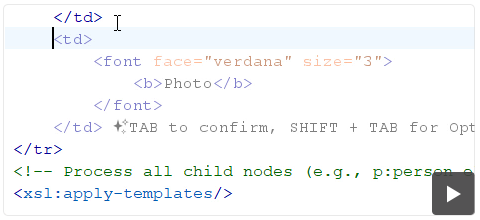
AI-generated content inserted into documents is automatically validated, and when errors are detected, the AI attempts to correct them. This behavior is controlled through a dedicated option in the Oxygen AI Positron preferences. The AI Positron Fix action uses more context when needed, expanding the analyzed region for complex issues, and additional options let you decide when automatic validation and correction are applied (full documents, fragments, or inserted content).
Rich Attachment and Screenshot Workflow
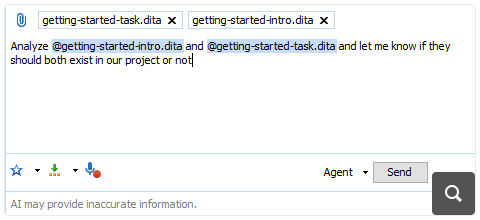
You can attach Word (DOCX), PowerPoint (PPTX), and PDF files to AI conversations, with text and images preserved in their original order for more accurate responses. Files and images can be added via drag and drop, copy/paste, or the Attach action, including when editing previously sent prompts. Attachments are displayed as chips in the chat input and conversation area, and a dynamic selection chip represents the current editor selection and can be referenced with @selection. You can also paste screenshots directly into the chat to quickly provide visual context.
Expanded AI Models and Connectors
Oxygen AI Positron now supports a broader range of OpenAI models (including GPT-4.1, GPT-5, and GPT-5.1 with the GPT-5.1 Thinking variant) and reasoning models (such as o3, o1, o4-mini, and o3-mini) via the Oxygen AI Positron Service. New connectors let you integrate with Anthropic Claude, Google Gemini, Google Vertex AI, AWS Bedrock, and xAI Grok, while the Microsoft Azure OpenAI connector adds OAuth 2.0 (Microsoft Entra ID) support and simplified configuration.
The Oxygen AI Positron Custom Connector add-on enables integration with custom AI services that expose OpenAI-compatible REST APIs.
DITA Editing
DITA Maps Manager Welcome Screen
When no DITA maps are open in the DITA Maps Manager view, you now see a welcome screen with options to quickly create or open a DITA map, along with a list of recently used DITA maps for easy access. This helps you start working faster and find your recent work more easily.
Quick Find Filter Added in DITA Maps Manager
You can now quickly search and filter referenced topics in your DITA map using the new search field and filtering options at the top of the DITA Maps Manager view. There are also some new filtering toggle options, enabling you to search only in titles or display results as a flat list to easily locate the resources you need.

Show Chunk Attribute on Tooltip in DITA Maps Manager
Now, you are able to see the value of the chunk attribute for each topic reference directly in the tooltip in the DITA Maps Manager, helping you quickly identify which map nodes are chunked.
References to DITA-Compatible Resources Expanded in Editor
When you open a DITA map with resolved topics (from the DITA Maps Manager view), references to DITA-compatible resources such as Markdown documents are now expanded and displayed as DITA XML directly in the editor. This lets you preview the converted content before publishing.
DITA Publishing
See Publishing Progress in Status Bar
When you publish a DITA-OT project file, the status bar at the bottom of the editor shows the ID of the deliverable currently being processed and the total number of deliverables in the batch. This helps you track your publishing progress when working with multiple deliverables.
Sticky Table Headers in WebHelp
You can now keep table headers visible as you scroll in DITA WebHelp output, making it easier to follow information in large tables. Control this behavior with the new webhelp.enable.sticky.table.headers transformation parameter.
Switch Between Light and Dark Theme in WebHelp Output
Switch between Light and Dark themes in WebHelp output to match your preferences or browser settings. A new Switch Theme button in the header lets you choose between Auto, Light, and Dark modes. The Auto option adapts the interface to your browser's theme, while the Dark theme makes reading more comfortable in low light environments.
All embedded Oxygen Feedback components, such as Comments, Page Rating, Block-Level Comments, AI Assistant, and AI-Enhanced Search Summary, automatically match the selected theme without additional configuration.
To enable this feature, set the webhelp.enable.dark.mode parameter. For more information, see Oxygen WebHelp Responsive User Guide: Dark Mode.
Full Screen Mode for WebHelp Responsive Output
You can now view WebHelp Responsive output in full screen mode by using the Enter Fullscreen toolbar button. This is especially helpful for large, wide screens. Also, this behavior can be controlled using the webhelp.full.page.width parameter.
Expand WebHelp Responsive Output to Full Width
Expand the WebHelp Responsive output to full width, making it easier to view content on large screens. Use the Maximize to full width/Restore to normal width button in the output to switch between full width and normal width.
TOC State Now Persists in WebHelp Responsive Output
Your expanded or collapsed state for both the publication and topic TOC is now preserved as you navigate between topics in WebHelp Responsive output. This way, you can keep your preferred view while browsing content.
Display Tooltips for Table Cells in WebHelp Output
It is now possible to enable tooltips that are displayed in WebHelp output when hovering over table cells, enhancing table readability by showing the corresponding row/column for the hovered cell. You can enable this feature by setting the webhelp.display.table.cell.tooltip parameter to yes.
Option to Compress PDF Output
When transforming DITA content to PDF (by using the HTML5 and CSS-based transformation), you can use the new pdf.compress parameter to reduce the size of the PDF output, making it easier to store and share your files.
Merge Multiple PDFs
Merge additional PDF documents with your output when transforming DITA content to PDF (based on HTML5 and CSS). Use the new chemistry.merge.before or chemistry.merge.after parameters to specify which PDFs to include before or after your main document.
Generate Separate PDF Files for Each Chapter or Part
Generate individual PDF files for each chapter or part of your DITA publication (when transforming to PDF using HTML5 and CSS). This allows you to provide separate PDFs for each section, in addition to the complete book. To enable this, use the args.css.param.pdf-split-mode parameter.
Create Presentation PDFs
You can now generate PDF files styled as presentation slides (similar to PowerPoint) from DITA content using the new Presentation publishing template. Each topic starts on a new slide, and images and tables are centered, making it easier to share your content in a presentation format. You can also customize the appearance using the Oxygen Styles Basket.
AI-Friendly WebHelp Output
You can now make your WebHelp Responsive output more accessible to AI and Large Language Models (LLMs) by enabling the webhelp.enable.ai.friendly transformation parameter. This generates a llms.txt file and companion Markdown files, giving LLMs a simplified view of your site content and a curated index of the most relevant resources.
Start Ordered Lists at a Specific Number
It is now possible to set the starting number of an ordered list by adding the @outputclass="start-X" attribute to the list (where X is the number you want the list to start from). This helps you continue numbering across multiple lists or match specific formatting requirements.
Visual Editing
Copy Visual Editor Content as Markdown or XML
It is now possible to copy selected content from the Author visual editing mode as Markdown or XML using the contextual menu. This helps you preserve formatting such as lists, tables, code blocks, or emphasized words when pasting the content elsewhere.
Add Comment Action Available on Floating Toolbar
For frameworks such as DITA or DocBook, adding comments in any location of a document is more convenient with the Add Comment action now available on the floating toolbar.
Invoke AI Action Operation
If you have the optional AI Positron add-on installed, you can now create custom Author actions capable of triggering custom AI-powered tasks. This lets you integrate AI capabilities directly into your editing workflows.
DocBook
Publish DocBook Topics Directly to PDF
Publish DocBook topic files directly to PDF using the DocBook to PDF transformation scenario, without needing a DocBook assembly file. This streamlines the publishing process for individual topics.
File/Directory Comparison
Focus on Relevant Folders when Comparing Directory Structures
You can now filter directory comparisons to include only subfolders that match specified patterns in the Compare Directories tool. This helps you focus on relevant folders when comparing directory structures.
HTML Comparison Reports Show How Comparison Was Done
The comparison report that is generated by the Generate HTML report for directory comparison tool, now includes a collapsible section with meta information about how the comparison was performed. This helps you review the options used in the process and makes it easier to understand the results.
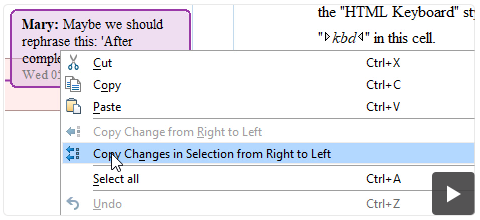
Improved Selection Precision When Copying Differences
You can now see your selections more clearly in the comparison tool, making it easier to copy exactly the parts you need from a difference.
Display Comment Callouts
Now, you have the possibility to display comment callouts when comparing two files. Enable the Show comment callouts option (available in the File Comparison - Appearance preferences page) to see comments from both versions directly in the comparison view.
Add-on updates
Git Client
A new version of the Git Client was released with the following updates:
Terminology Checker
A new version of the Terminology Checker was released with updates that include:
Miscellaneous
Avoid Breaking Links in Your Project when Deleting Files
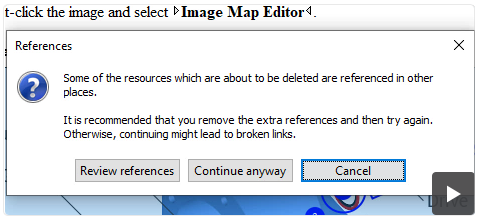
To avoid breaking links or dependencies in your project when you try to delete files or folders that might be referenced from other resources, you can now enable the Main Files feature from the Project view. By enabling this, Oxygen displays a warning dialog listing all links that would be broken, so you can prevent accidental broken references in your project.
Quickly Add Relative Links
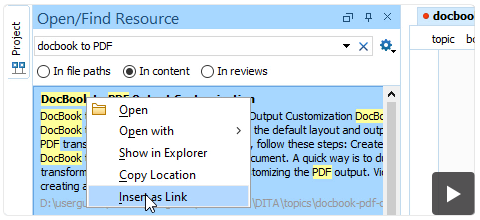
When using the Open/Find Resources dialog box or side view, you can now right-click a result and select the Insert as Link contextual action to quickly add a relative link to that resource at your cursor position in the current document.
Manage Validation Scenarios More Easily
You can now enable or disable custom validation scenarios for the current document directly from the Validation toolbar drop-down menu. This makes it easier to control which checks are applied to your content.
Save Validation Error Report
You can now save an HTML report of validation errors detected in the Results view using the new Save Validation Report contextual menu action. The report groups errors by document, provides sortable tables for easier analysis, and includes links to quickly open the validated documents, their associated schemas, and additional information about each detected error (when available).
Choose to Apply Schematron Quick Fixes in Bulk Only for Default Fixes
The new option, Restrict Apply All to Quick Fixes Marked as "sqf:default-fix", available in the Schematron Preferences page, helps you avoid applying unintended fixes when using the Apply All action.
Component Updates
macOS 26 (Tahoe)
Oxygen 28 has been fully tested on macOS 26 (Tahoe) and it is now officially supported.
Updated OpenJDK to Version 21.0.9
The version of OpenJDK that is bundled with the installation kits for providing the Java Runtime Environment was updated to version 21.0.9 from Eclipse Adoptium.
Support for Eclipse 4.36 and 4.37
The Oxygen plugins for Eclipse were updated to fully support Eclipse versions 4.36 and 4.37.
Integrated XML Calabash 3.0.25
XML Calabash 3.0.25 was integrated into Oxygen to offer support for validating and transforming XProc 3.0/3.1 scripts.
Updated XMLResolver to Version 5.3.3
Updated the XMLResolver library to version 5.3.3.
Updated TEI Schemas to Version 4.10.2
The TEI XML schemas were updated to version 4.10.2.
Updated TEI Stylesheets to Version 7.59.0
The TEI XSLT Stylesheets were updated to version 7.59.0.
EPUBCheck Updated to Version 5.3.0
Updated the EPUBCheck tool used to validate EPUB resources to version 5.3.0.
Updated Mammoth to Version 1.11.0
The Mammoth library has been updated to version 1.11.0. This library is used for publishing Word documents that are referenced in DITA maps using the word-to-dita format and for inserting references to Word documents in DITA maps or topics.
Updated Apache POI to Version 5.4.1
The Apache POI library (used for Excel conversion) has been updated to version 5.4.1.
Updated Apache FOP to Version 2.11
The Apache FOP library was updated to version 2.11.
Updated Apache PDFBox to Version 3.0.3
The Apache PDFBox library was updated to version 3.0.3.
Updated Apache FontBox to Version 3.0.3
The Apache FontBox library (used to render PDF images and to index PDFs referenced in projects) was updated to version 3.0.3.
Updated Apache Batik to Version 1.19
The Apache Batik library (used for SVG rendering) was updated to version 1.19.
Support for DITA-OT 4.3.5
The publishing engine was updated to integrate DITA-OT 4.3.5.
Deprecated/Removed Components
Removed Old SharePoint (User/Password-based) Connection Support
Support for the old SharePoint user/password authentication-based connections is no longer made available by Microsoft.
Removal of Deprecated Validation and Transformation Engines
The following deprecated validation and transformation engines were removed:
API Additions
Find in Files
The new ProjectController.findInFiles API allows you to find precise matched content in the entire scope of your project using the full power of the Find/Replace in Files functionality. For example, it enables the use of regular expressions, case sensitivity, XPath filters, and more.
Refactor XML Documents
The new XMLRefactorUtilAccess API allows you to run predefined XML refactoring operations on multiple XML documents and then to obtain the modified content. It also allows you to run an XSLT stylesheet as a refactoring operation over multiple XML documents.
Customize Labels in Diff/Merge Tool
New constants have been added to the ro.sync.diff.merge.api.MergeFilesOptionsConstants interface. These constants can be used as keys in the DiffAndMergeTools#openMergeApplication(java.io.File, java.io.File, java.io.File, java.util.Map) "mergeOptions" map parameter. This allows you to customize various labels in the merge application's dialog box, such as:
Customize Labels in Diff/Merge Tool's Preview Dialog Box
The ro.sync.exml.workspace.api.standalone.DiffAndMergeTools.openPreviewDialog(String, String, String, String, String, LinkedHashMap<URL, URL>) API method has been updated to include three additional parameters. These new parameters allow you to customize various labels in the diff tool. For example, you can now change the label for the action that opens the preview dialog, as well as the labels for the left and right sides of the comparison panes.
Get Associated Transformation Scenario URL
The new XMLUtilAccess.getAssociatedTransformationScenarioInputURL(URL) API method can be used to obtain the input URL of the transformation scenario associated to an XSLT or XQuery document.
Get Associated Validation Scenario URL
The new XMLUtilAccess.getAssociatedValidationScenarioInputURL(URL) API method helps you find the input URL linked to a specific schema in a validation scenario. When you provide a URL that points to a schema file (such as XSD, RNG, DTD, or Schematron), this method searches the validation scenario to identify the associated XML or JSON source file. It returns the first matching input URL it finds in the scenario.
Indent Specific Section in a Document
The new TextDocumentController.indentSection(int, int) API method can be used to indent a specified section in a document.
Allow Deletion of URL Resources
The new ro.sync.net.protocol.RemovableURLConnection API interface can be implemented by a CMS that uses the Oxygen SDK. This allows the deletion of URL resources through the ro.sync.exml.workspace.api.Workspace.delete(URL) API.
Scripting
HTML Comparison Reports Show How Comparison Was Done
The comparison report that is generated by the Generate HTML report for directory comparison tool, now includes a collapsible section with meta information about how the comparison was performed. This helps you review the options used in the process and makes it easier to understand the results.
Include Folders Filter Added in Compare Directories Script
The Include Folders filter has been added in the Compare Directories script to limit comparisons to only the folders that match your specified patterns. This gives you more control over which folders are included when comparing directory structures.

© Copyright 2000-2026 COGITO SOFTWARE CO.,LTD. All rights reserved
