|
|
|
|
|
|
|
Kernel for Outlook Express Recovery
rating5(4.9/5) 534 Reviews
Top-rated software to fix Outlook Express errors and corruption
1M+Downloads
Recover your entire Outlook Express data with Kernel for Outlook Express Recovery. This user-friendly software efficiently retrieves lost or corrupted emails, contacts, and attachments, ensuring seamless restoration of your vital communication data.
Download the trial version and preview the recovered Outlook Express email data.
190+ COUNTRIES WORLDWIDE
20 YEARS' EXPERIENCE
24x7 CUSTOMER SUPPORT
What's new in
Kernel for Outlook Express Recovery
Top use cases for Kernel for Outlook Express Recovery
Repair damaged Outlook Express folders with ease
When faced with the challenge of damaged Outlook Express folders, our Outlook Express Recovery tool is the go-to solution. Effortlessly repair folders while retaining the formatting, properties, and overall integrity of repaired folders. Its user-friendly interface eliminates the need for extensive technical skills, making folder repair straightforward for users of all levels. Trust this tool to repair your damaged Outlook Express folders with precision and efficiency.
Comprehensive recovery of corrupted Outlook Express mailboxes
In situations where Outlook Express mailboxes (.dbx) are corrupted, our advanced Outlook Express Recovery tool comes to the rescue. With remarkable capabilities, it ensures the comprehensive recovery of corrupted mailbox data while maintaining complete integrity. The tool conducts thorough scanning and analysis to extract DBX email data within minutes. Trust this tool to restore your corrupted mailboxes efficiently, ensuring a quick recovery process with minimal effort.
Compatible across various Outlook Express versions
In situations where you need to recover DBX files across various Outlook Express versions, our Outlook Express Recovery tool is your ultimate solution. Designed to support all versions, whether old or new, it ensures comprehensive recovery. Whether it's Outlook Express 5.0, 5.5, or 6.0, the tool excels in recovering DBX files, providing users with an extensive and reliable recovery mechanism for diverse Outlook Express versions.
How to
use Kernel for Outlook Express Recovery?
Follow the steps below to ensure quick and efficient recovery of corrupt DBX files with complete integrity.
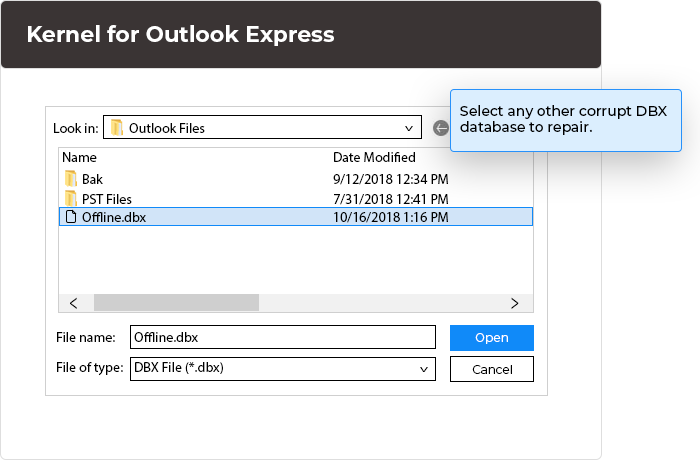
Add DBX Files:
In this step, software displays defaultOutlook Express database to repair. Youcan also select any other corrupt DBXdatabase to repair.
Recover DBX Files:
In this step, the software extracts all theinaccessible Outlook Express email datain a list. You can save them as per yourneed by applying filter options.
Save Recover Data:
In this last step, software displays.DBXfile repairing process. Upon completion,it displays a message "Saving process iscomplete”
Explore software’s key capabilities
Kernel for Outlook Express Recovery offers multiple features for secure and accurate recovery.
Repair, recover, and restore DBX email files
Repair your corrupt email files with Kernel for Outlook Express Recovery, an advanced tool that recovers lost, deleted, or inaccessible DBX email data. Conducting thorough scanning and analysis, it swiftly restores your valuable information within minutes.
Fix and resolve all DBX corruption errors
Repair unexpected errors in your corrupted Outlook Express DBX database files with this advanced email recovery tool. Fix all corruption issues and effortlessly retrieve your valuable email data.
Recover deleted items
Effortlessly recovering deleted items, this tool highlights them in red font post-recovery. Offering selective saving options, it empowers you to decide which deleted items to retain, providing flexibility and control.
Advanced filters
Using advanced algorithms, this exceptional Outlook Express Recovery software presents recovered email data in a comprehensive list. Empowering users with diverse filter options such as "Save as DBX" and "Save as EML" ensures versatile and efficient data restoration.
Save in EML or DBX format
Upon successful recovery of added DBX files, choose from two saving options - EML or DBX - provided by the tool. Tailor your saving preferences by opting to save all items or selectively saving according to your specific requirements.
Save in any Outlook Express folder
Customize your data-saving experience with the tool as it permits you to store data in DBX format within any Outlook Express folder, including Inbox, Outbox, Sent Items, and more. Achieve flexibility by saving recovered data to your preferred destination.
Live data preview
Examine all emails and recovered items in detail before saving them. The tool highlights deleted items in vivid red, swiftly capturing your attention amidst the data and ensuring a quick and focused review of the recovery results.
Keep original properties of recovered files intact
Preserve formatting, properties, integrity, and consistency effortlessly with Kernel for Outlook Express recovery software. Swiftly and accurately recover Outlook Express email data while ensuring the seamless maintenance of essential file attributes for an enhanced recovery experience.
Straightforward-to-Use
Effortlessly operate the tool without requiring any technical skills. Recovering corrupt Outlook Express files (DBX) is a breeze with just three straightforward steps: load the file, preview the data, and save the file, ensuring a user-friendly experience.
Support all Outlook Express versions
Recover DBX files effortlessly, tailored for compatibility with all versions of Outlook Express, whether older or newer. The tool seamlessly supports Outlook Express 5.0, 5.5, and 6.0, ensuring comprehensive recovery across diverse versions.
Frequently asked questions
How to use Kernel for Outlook Express Recovery?
Using the Outlook Express recovery tool is relatively easy; follow these simple steps:
Step 1: Launch the software. Tap on the 'Open' window to browse for the corrupted DBX file.
Step 2: Browse and list the DBX file from your disk or select DBX files, then preview those files.
Step 3: Click the folder that you want to recover email items, and the tool will scan that folder, and display recovered items in a tree-like structure.
Step 4: Select the appropriate folder for saving and click the Save button from the toolbar.
Step 5: The Following window will be displayed with different saving options: Save as DBX, Save as EML, Save all selected, Save all, Save all but deleted, Save all but existing.
Can this software help recover accidentally deleted emails in Outlook Express?
Yes, with Kernel for Outlook Express Repair software, it's easy to recover and restore deleted emails from DBX files. Scan the DBX file containing the mailbox, and then the deleted files will be highlighted in red for easy identification.
How to resolve "Msoe.dll initialization error" while accessing the corrupt Outlook Express DBX files?
This tool expertly restores user profiles from DBX files associated with Outlook Express and other provided DBX files. It recovers the original email hierarchy, formatting, properties, attachments, embedded images, background images, and all components from the corrupt DBX file.
Does recovering DBX files using this software affect the performance or speed of tasks running on the system?
No, this software acts as standalone software and doesn't affect other running operations.
I am running this Outlook Express Repair tool, but I am still waiting for the results. Is there any problem?
The time required to complete the recovery process depends on the size of the DBX file. If the size of the DBX file is large, then the tool will take some minutes to complete for scanning.
How can I save the Outlook Express emails in DBX format using this software?
To recover Outlook Express DBX files and save them into DBX file format, follow the given steps below:
Step 1: Select the Save as DBX option from the Saving Options window.
Step 2: Depending upon your requirement, select the saving options - Save all selected, Save all, Save all but deleted, Save all but existing. Click OK to continue with the process.
Step 3: After you click on the OK button, select the Outlook Express folder from the Folder Selection Window. It saves the recovered emails in a sub-folder created under the selected folder.
Step 4: Click OK, and the software will start the saving process. Once completed, it displays the message "Saving Process is complete." Finally, you can view the restored emails in Outlook Express under the selected main folder.
Software
Prerequisites & recommendations
About Software
Version:9.04.01
Release Date: Apr 2009
License Type: Home, Corporate & Technician
Version Support
Outlook Express: 6.0, 5.5, 5.0 and 4.0
System Requirements
Hard Disk: 50 MB of disk space
Memory: 64 MB Minimum
Processor: Intel® Pentium Processor compatible (x86, x64) or equivalent
Operating System: Windows 365, 11, 10, 8.1, 8, 7, Vista, XP, 2000, 98, NT, 95, Windows Server 2022, 2019, 2012, 2008 R2, 2008, 2003 R2, 2003

© Copyright 2000-2025 COGITO SOFTWARE CO.,LTD. All rights reserved