|
|
|
|
|
|
|
2M+ Downloads
Exchange Recovery tool helps to recover mailboxes from corrupt and dismounted on-premises Exchange Databases. It allows easy recovery of EDB Mailboxes to individual PST files using Standard and Deep Scan mode.
Free download trial version and save 25 items per folder for free.
190+ COUNTRIES WORLDWIDE
20 YEARS' EXPERIENCE
24x7 CUSTOMER SUPPORT
Top Benefits of Kernel for Exchange Server
Explore the advanced benefits of the Exchange mailbox recovery software that allows you to manage your Exchange data easily.
Auto-Search EDB Files
Search EDB files from any hard disk directory using our Exchange data recovery tool. Easily find and add multiple EDB files in the tool for bulk EDB recovery with all files & folders intact.
Migrate EDB file to Live Exchange
Easily migrate a disconnected Exchange database file to Live Exchange Server or Office 365 using Exchange data recovery software. Our tool helps you to transfer EDB file to any Exchange server version (On-premises or Online).
Recover Corrupt Exchange database
Recover data from a corrupt EDB file with our Exchange Server recovery tool and save the mailboxes to PST, Live Exchange Server, and Office 365. Download free version to resolve Exchange errors caused by Boot failure, Checksum error, Database integrity, etc.
Advanced Recovery Modes
Error-free Exchange mailbox recovery with Standard Scan & Deep Scan. The dual scanning helps to restore a complete database from high-level corruption, along with hidden system files.
EDB to Office 365 Migration
Migrate files & folders from offline EDB file to Office 365 tenant. The tool allows for a secure connection to any Office 365 account on any tenant using the modern-auth feature.
Manage Large-Sized Database
Create a separate PST file for each EDB file mailbox. Simplify data separation & management with the tool's split PST file option and divide the output PST file according to your size requirement.
Easily Fix Any Error Caused by a Corrupt Exchange Server
The Exchange database recovery software helps you to cure corruption that has occurred for any reason. Some common errors that you will see due to damage to the EDB file are:
Dirty Shutdown Error
This error occurs when the Exchange database is not shut down properly, leaving it in an inconsistent state.
Unable to Mount EDB File
It's a critical error preventing the database from attaching to the server and making data inaccessible.
JET ESE Errors
These are low-level database errors that signal internal problems, preventing normal database functioning.
Missing or Corrupt Transaction Logs
If transaction logs are damaged, the database cannot be brought to a clean or consistent state.
Exchange Server is unavailable
This error can arise if your database file is damaged or in an inconsistent state for any reason.
Can't Start Information Store Service
An issue within the database can lead to this service failure, preventing access to mailboxes.
Cyclic Redundancy Check
A CRC error indicates that the Exchange database file has been corrupted, making the data in it inaccessible.
Low Space Issue
Insufficient disk space for the database and its log files can cause the Exchange database to dismount and become unavailable.
Exchange recovery software’s key capabilities
Kernel for Exchange Server recovery enables the advanced Exchange restore database using impactful features that help you at each step.
Recover Exchange mailboxes
Repairs dismounted or offline Exchange databases and recover all mailboxes from it. Load the database quickly and initiate Exchange database recovery to export private mailboxes, archived mailboxes, and public folders. Transfer mailboxes to Microsoft 365, Exchange Server, Hosted Exchange, or saved into a PST format.
Deleted Exchange mailbox recovery
Recover Exchange Server mailboxes from the Exchange databases (offline EDB/STM files) and Exchange backups. Exchange Server recovery software restores lost or permanently deleted mailboxes, folders, messages, attachments, contacts, calendars, and email properties.
Export EDB file to PST
Use the Exchange Recovery tool to Export offline EDB mailboxes to PST. Restore Exchange mailbox from Exchange Database file to a new or existing PST file without disturbing the existing mailbox hierarchy. This feature helps with easy mailbox archiving and specific mailbox migration.
Public Folder export
The Exchange Recovery tool offers recovery and export of public folder data from offline databases or live mailboxes. It also restores lost or deleted public folder items (from both Office 365 and Exchange). Save specific mailbox (email, contact, tasks, etc.) items to the required destination.
Live Exchange to Live Exchange Migration
Kernel Exchange Recovery software allows users to connect Live Exchange server in source. Get ease to connect multiple mailboxes, single mailbox, public folder, and archive mailbox. Transfer the selected source data to Live Exchange server connected the same way in the destination.
Exchange BKF recovery
Kernel for Exchange Server Recovery tool includes an Exchange backup extractor feature for direct data recovery from Exchange BKF files (Backup). It helps you recover Exchange files (Priv1.edb, Stm.edb, mailbox database.edb ) and saves your time as compared to traditional lengthy restoration processes.
Detailed reports & operation logs history
Generate detailed reports to analyze the mailbox data flow based on parameters such as senders, receivers, attachments, dates, and messages. Exchange Recovery software provides operation logs and details once you recover Exchange mailbox. Select a specific date and time to access its log details easily.
Advanced search within mailboxes
Features a Search function to perform deep and precise searches within the mailboxes. Quickly locate messages with specific words/phrases and search within attachments by criteria like body, type, size, date range, and more. Save custom searches for quicker access without creating them repeatedly.
Preview of Exchange data before saving
The Exchange recovery tool features a preview pane to access information stored within the selected folder, email, or message from source & destination lists. Before you restore Exchange mailbox, preview feature allows you to read the entire message, including attachments, contacts, etc.
Transfer Office 365 to Office 365
Effortlessly transfer Office 365 mailbox data to another mailbox or export it to PST, live Exchange Server mailboxes. The Exchange Recovery tool supports the transfer of single/ multiple mailboxes, archived mailboxes, & public folders while connecting Microsoft 365 accounts through a modern authentication.
Upgrade to the latest Exchange Server version
The Exchange recovery database solution allows you to upgrade to the latest Exchange Server version without data loss or mailbox setting changes. You can easily migrate thousands of mailboxes from one version to another of the Exchange Server without using the intermediate server versions.
Granular Exchange Recovery
Use Exchange Server recovery software to select EDB file and recover complete or specific data from all the user mailbox stored in it. Make use of several data filters to recover specific mailbox items as per to your needs. Recover entire data in one go or perform recovery according to date or item type.
How does Kernel for Exchange Server work?
The Exchange recovery solution has an open-view interface, allowing easy management of source and destination data in one place. Below is a three-step simple procedure to add and recover Exchange database files.
Select Exchange data source
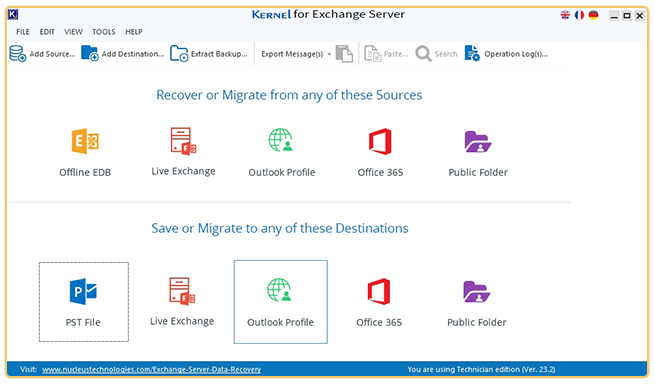
Launch Kernel for Exchange Server tool on your system and add the source mailboxes using the options available. There are 4 options provided which include:
If you select Offline EDB file as the source, provide the path to the file from your system’s local or network attached storage (NAS). If you want to proceed with other sources from the list, provide the credentials to connect with the mailbox and start Exchange mailbox recovery.
Preview mailbox components
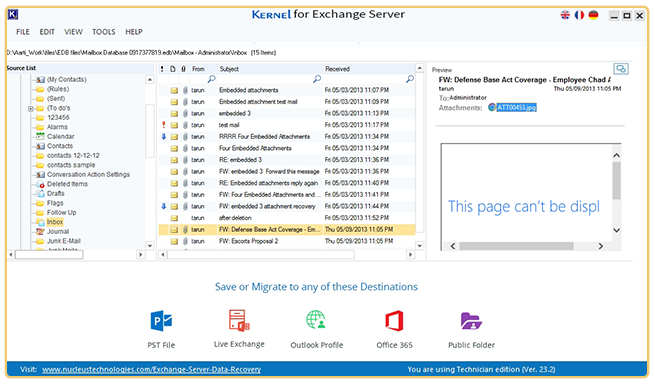
Now, as the selected source is successfully added in the tool, you can preview all the users mailbox (es) available at the source on the left pane of the window. Simply select the desired user mailbox folder and expand the structure using plus (+) icon to preview its folders (Inbox, Outbox, Sent Items, Calendars, etc.) and the email data.
During mailbox preview, you will see some of the emails mentioned in red color. These are the emails that were deleted accidentally or intentionally from the mailboxes and are now recovered by the Exchange data recovery tool.
Add destination to export recovered data
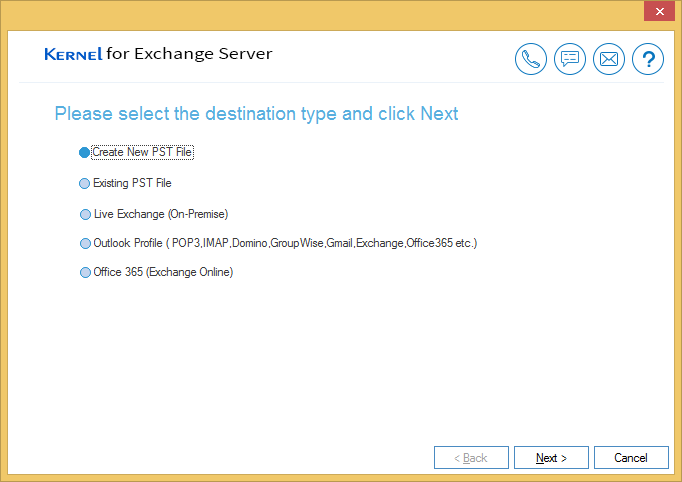
As you export or migrate the data using this Exchange mailbox recovery tool, it provides five options to select in the destination.
With PST file selected as the destination, select to create a new or add the data to an existing PST file to recover deleted Exchange mailbox. For other destinations such as Outlook profile, Live Exchange or Office 365, provide the credentials to connect the tool.
Select Filters for data export
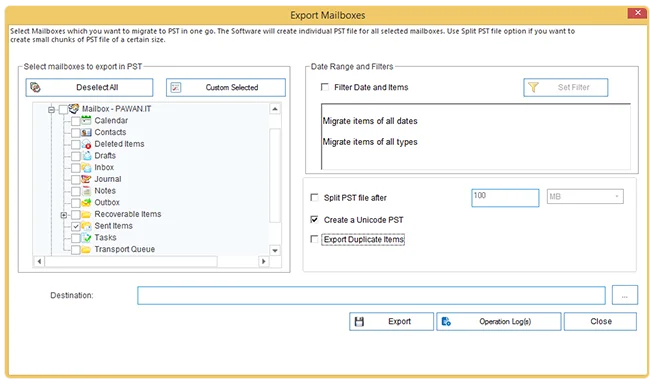
While you restore Exchange mailbox, use available filters as per your requirement to sort out the data properly at the destination. With the tool filters, it will be easy to get rid of outdated and unnecessary data that might otherwise just occupy storage in the destination. Select or deselect the mailbox folders you want to include in the recovered data at the destination. Data filters in the Exchange database recovery software includes:
With these filters in place, you can export or save selective emails, files, and folders to your preferred destination.
Kernel for Exchange Server: What Data Items You Can Recover
The Exchange Server Recovery tool allows you to restore all mailbox content while preserving structure and originality.
Mailboxes
Use the Exchange Server recovery tool to restore mailbox (es) from corrupt/inaccessible or damaged database files and restores them to PST file/ Exchange/ Office 365. The selected destination will have all mailbox data items such as emails, calendars, contacts, attachments, meetings, tasks & notes.
With this tool, it’s easy to recover all as well as selective mailboxes:
Emails
Recover deleted/inaccessible and healthy mail items from all mailboxes and public folders from the server preserving all their properties, text, inline images, and formatting as:
Emails can be recovered irrespective of the mailbox folders (Inbox, Sent items, Deleted items, drafts, Outbox, etc.) they belong to. Applying the date filters, it’s easier to retrieve selective emails from the mailbox.
Calendars
With the Exchange Server recovery tool, it’s easy to export calendars from a corrupted or damaged database file. It makes it easy to recover calendar entries in their original ICS format.
Contacts
Use the Exchange recovery tool to import contacts from the Exchange Server mailbox with all the business card details to PST, MSG, TXT, or DOC file format. It contains general, personal, and business information as mentioned below:
Basic Details:
Business details:
Attachments
With Exchange data recovery utility, technical and non-technical users can extract attachments from mailboxes. The Exchange Server user can easily move all of their attachments without hassle.
Attachment Types:
The Exchange mailbox recovery tool will help you preview and extract attachments from all mailbox items without any data loss.
Tasks & Notes
Recover corrupt Exchange data such as task lists, to-do items, and notes created by the users and migrate the data to PST, Exchange, or Office 365 along with their attributes, namely:
Tasks:
Notes:
Supported Destinations
The Exchange Server Recovery tool allows you to export data to the following list of supported formats.
Kernel for Exchange Server recovery FAQs
Find out answers to some common questions that users have related to our tool.
General FAQs:
How is Exchange database recovery possible for a corrupt Exchange database file?
Follow the below steps to recover Exchange Server data from an unmounted Exchange database:
Step 1: Run the Exchange Recovery software and select the Offline EDB File option from the available source options.
Step 2: Select “Standard Scan” or “Deep Scan” according to the corruption-level.
Step 3: When the source content is displayed, select Export Mailboxes to PST from the right-click menu. It will open a wizard where you can easily filter the mailbox data.
Step 4: Provide the required options and click Export.
Repeat the same process for batch PST files with administrator privileges.
I have multiple mailboxes in one .edb file. Can I create a separate PST for each mailbox?
Yes, you can. Exchange Mailbox Recovery software supports multiple exports of user mailboxes to separate PST files. You can also manage the PST file size using the split PST file feature.
Does the Exchange Mailbox Recovery tool transfer the data from Exchange public folders to Office 365 public folders?
Yes, it allows to export data from Exchange public folders to Office 365 public folders.
Can I export mailboxes directly to Exchange?
Yes, you can restore Exchange mailbox (es) directly to Exchange. The Exchange Recovery tool allows the export of all/selective mailboxes from the offline database (all versions supported) file to the Live Exchange Server in a single attempt.
Does Exchange Recovery tool have an option to avoid duplicate items?
Yes. The tool automatically skips duplicate items during export or recovery. However, as per your requirement, you can also choose to retain the duplicate items by clicking the Export duplicate items checkbox of the wizard.
In Exchange, there are UNICODE characters, too. Does the software recover them also?
Yes. The free Exchange Recovery tool supports Unicode Exchange database files for recovery. Exchange database software allows you to recover Unicode characters. After recovery, you can save EDB to different destinations according to your requirement, including Unicode PST files.
Will I need separate setups to restore mailbox to PST, Live Exchange and Office 365?
No, there is no need to download and install separate setups. Kernel for Exchange Server Recovery is a complete software suite that allows you to perform Exchange data recovery to PST, Live Exchange, and Office 365.
Is it possible to recover calendars or contacts from an offline EDB file?
Yes, you can use Exchange mailbox recovery solution to seamlessly extract or recover contacts and calendars from an Offline Exchange database file. The tool also offers a free trial version that you can download to recover mailbox data.
Does this software restore Exchange mailbox from inconsistent state?
Kernel for Exchange Server helps to recover Exchange Server from an inactive or inconsistent state of Exchange Server database. The complete process takes only a few steps. Download tool, add source database file, and restore.
Can I use this tool to extract multiple mailboxes to Office 365 at once?
Our Exchange Server recovery tool supports easy single mailbox recovery as well as allows recovering multiple mailboxes directly to Office 365 just by connecting with the target tenant.
Technical FAQs:
While saving Exchange database, we lost the track of the location of our offline EDB file. Do you think your tool will be able to spot it?
Our Exchange recovery tool provides a Search/Finder feature. It allows the users to simply provide the location of the expected system drive where the file may be present. The tool will then locate and fetch the files to help you remove corruption.
While performing Exchange Server recovery, I get an error message "Out of Memory". What to do?
The 'Out of Memory' error message occurs when the database file is huge. You need to attempt the Exchange data recovery once again; this time, select the "Use Disk Space" option after choosing the required Exchange data recovery note.
Using the Exchange Recovery tool, I want to know if I can save my public folder data from live Exchange to the PST format.
Yes, of course. The software integrates the features to connect to the Exchange Public folder and export its content to PST or other destinations as per the user's requirement.
I want to move only the contact details to Office 365. Can I do that?
Yes, surely you can move the contact information selectively. On its Filter Selection window, there is a feature named Item Type filter. Just check the Contacts option and uncheck all the others.
I am getting the message "Invalid Class String. Please make sure Outlook is installed and configured properly." How to solve this?
This message comes up either when Outlook is not installed on the system or if it is installed but not configured properly.
If Outlook is not present, install Outlook on the system where the software is running.
If Outlook is present, then make a new POP profile in Outlook (it can be a dummy non-working one). Uninstall and reinstall the software, and then try again. This will resolve the error.
Do I need to have MS Outlook installed on the system where I run the Exchange mailbox recovery process?
Yes, MS Outlook installation is a must. At least one profile should be configured in the Outlook. You can configure any temp profile; configuring a working profile is not mandatory.
How to restore a deleted mailbox from an exchange database?
When you use our tool to restore Exchange database, it also recovers deleted mailbox items. Select the recovered mailboxes and extract it to PST or other destinations.
Due to sudden power shutdown, my Exchange Server is infected with corruption. How do I repair Exchange database and restore the data?
If your Exchange server is corrupted, you can use our tool and restore Exchange database without any restrictions and access your emails again. It will make sure of smooth workflow of your business communication.
We are planning to decommission our old Exchange Server 10, but the public folder within our old server has a lot of crucial data. Is it possible to backup public folders using this Exchange mailbox recovery solution?
With this Exchange recovery software, you can extract public folders data from any Exchange Server and save it to a PST file. However, if the volume of data is large, you can use the Split PST feature to make multiple PSTs of manageable size.
Kernel for Exchange Server Recovery
Prerequisites & recommendations
About Software
Version: 25.0
Release Date: Oct 2025
License Type: Corporate & Technician
Version Support
MS Exchange Server: 2019, 2016, 2013, 2010, 2007, 2003, 2000, 5.5 and 5.0
MS Outlook: Office 365, 2021, 2019, 2016, 2013, 2010, 2007, 2003, 2002, 2000, 98 and 97
Virtual Environments: - VMware® Server 1.0x, 2.x, VMware® Workstation v6.0x for Windows, Microsoft® Virtual PC 2007, VMware® ESX 4.0, ESXi
System Requirements
Hard Disk: 500 MB of disk space
Memory: 2 GB Minimum
Processor: Intel® Pentium Processor compatible (x86, x64) or equivalent
Operating System: Windows 365, 11, 10, 8.1, and older versions.
Windows Server 2022, 2019, 2016, 2012, 2008 R2, 2008, 2003 R2, 2003

© Copyright 2000-2025 COGITO SOFTWARE CO.,LTD. All rights reserved