|
|
|
|
|
|
|
SharePoint Backup Tool for SharePoint Online & Cloud Data
Download SharePoint Online Backup solution to build a strong defense against cyber threats, malware, or ransomware intrusions. Backup all your sites, subsites, lists, libraries, etc., to local storage for comprehensive data protection. Supports backing up data from all SharePoint Servers, such as SharePoint Online, 2019, 2016, 2013, and earlier versions.
190+COUNTRIES WORLDWIDE
20YEARS' EXPERIENCE
24x7CUSTOMER SUPPORT
When to Use Kernel SharePoint Backup Software?
Kernel SharePoint Backup tool emerges as a prime choice for businesses to backup data in several scenarios. Let’s explore when to use this backup software.
Diversified data protection
Provide diversified protection to business-critical data against accidental data loss, corruption, ransomware attacks, hardware or server crashes. Download a secure backup of SharePoint data to avoid losing to cyber threats.
Disaster recovery
Support uninterrupted business continuity and productivity. SharePoint backup and restore software consolidates the backup process, assures data protection, and eliminates any downtime, even after circumstances like a cloud outage.
Meet compliance requirements
Run a backup for SharePoint Online to meet legal regulations and compliance. Stored SharePoint backup allows meeting the demands of the industry standards that require businesses to retain specific data for a longer time period.
How to backup SharePoint Online data?
Run the SharePoint backup tool to backup SharePoint data using following 5 easy steps:
Step 1: Go to the source pane, right-click on SharePoint (On-Premises/Online).
Step 2: Select Add New SharePoint site and enter Project Name in the new window.
Step 3: Select the authentication mode and enter credentials to connect to the SharePoint site.
Step 4: Go to the added project and expand it. Right-click and select Download a Copy.
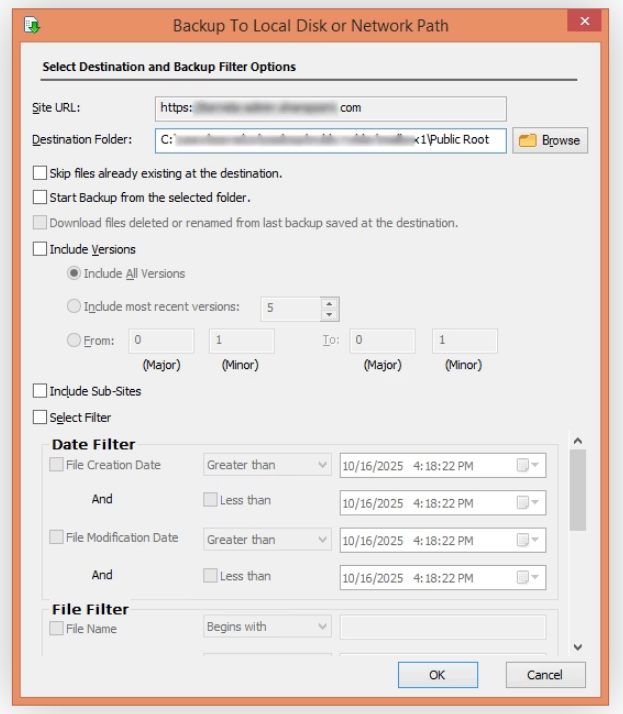
Step 5: Click Browse to select the destination folder and apply the suitable filters. Click OK.
Kernel SharePoint Backup Software: Key Features
Take advantage of advanced capabilities supported by the SharePoint automatic backup software and download a structured backup of the SharePoint site and other content.
Detailed SharePoint server backup
Establish a connection with the desired SharePoint site easily and run error-free SharePoint backup and restore jobs. Allows backing up entire sites, including site pages, lists, libraries, documents, web parts, version history, etc.
Backup SharePoint sites
Use the SharePoint backup solution to backup bulk site collections. Allows saving all types of SharePoint sites, including Team Sites, Communication Sites, etc., with Documents, Site Assets, Style Library and Pages, and other site content.
Backup SharePoint subsites
Backup SharePoint subsites with documents, lists, libraries, site settings, permissions, group memberships, metadata, etc. No need to backup complete SharePoint sites. Run the SharePoint data backup tool for effective data loss prevention.
Document library backup
Backup all the lists & libraries stored within the selective SharePoint server. Supports backing up everything from the document libraries and SharePoint lists with default and custom rows & columns such as Title, Attachments, ID, Modified By, etc.
On-premises SharePoint backup
Use the SharePoint Server backup tool to backup data from all SharePoint server versions. Easily backup SharePoint 2019, 2016, 2013, 2010, and earlier versions, retaining the site types and language settings as the source.
Backup SharePoint Online
Supports hassle-free SharePoint Online backup to local or network-attached storage. Allows saving complete or desired data from the site collections or site farms easily within the SharePoint tenant, assuring zero downtime.
Restore from SharePoint backup
Apart from SharePoint cloud backup, the software allows easy restoration of data from existing backups available within the local storage. Restore data to both on-premises SharePoint and SharePoint Online, supported by pre-migration analysis to avoid errors.
Select backup destination
Run the SharePoint Online backup tool to save data from the SharePoint Server to local storage or NAS drive with 100% accuracy. Define the desired destination path from your computer to save the backups with retained data integrity.
Delta pass backups
Include the option “Skip files already existing at the destination” to maintain the consistency of data. Supports incremental data backups to eliminate data duplicity for easy restoration of the SharePoint servers later when required.
Backup granular data
Provides the capability to backup single or multiple documents as required. SharePoint Online backup and restore tool allows easy selection of desired site collections, subsites, list data, and document libraries to backup securely.
Include selective versions
Use the version control feature to backup n number of versions of the documents. Select from: “Include All Versions,” “Include most recent versions,” and “From.” Backup all documents from the site or define specific versions.
Define date range
With the Date Filter, specify the date range to backup data for a selective date range. Define the to and from range for File Creation Date and File Modification Date to save files created or modified within the specified range.
Attribute based data export filters
The software provides File Filter to save only the specified files according to their attributes. Define attributes, such as File Name, Extension, Title, Content Type, and ID, with the criteria: Begins with, Includes, Equal, and Not Equal.
Backup modified files
Apart from Date and File filters, use the User filter for a controlled and precise backup for SharePoint Online. Define users that created or modified the files based on the parameters: Begins with, Includes, Equal, and Not Equal.
Hierarchical SharePoint backup
SharePoint cloud backup solution supports downloading structured and organized backups without making any changes. Save documents to the local drive with the original hierarchy to allow easy data restoration to SharePoint Servers.
Frequently Asked Questions
Here are the frequently asked questions from our users about SharePoint Backup tool’s features and their usage.
Can I back up specific documents from a SharePoint site?
Perform document-specific backup from a SharePoint site using the following steps:
Step 1: Open the tool and add the SharePoint site to the Source pane.
Step 2: Right-click on the SharePoint site containing the documents for backup and click SharePoint Backup.
Step 3: Provide a saving location and tick the Select Filter option.
Step 4: Modify the File Filters to save specific documents as per your requirements, and click OK to start the backup.
I don’t want to backup entire SharePoint Online tenant. Can this tool help me backup only the Communication sites?
Yes, with the Kernel SharePoint Backup software, you can back up the data you want rather than the entire server.
I want to skip video files from the backup. Can this SharePoint cloud backup tool help me do that?
Yes, Kernel SharePoint Backup software supports a File Filter that allows you to define files to include or exclude from the backup process. This helps with easy and controlled data backups.
Does this SharePoint document backup tool save subsites?
Yes, the SharePoint tool allows easy selection to include or exclude subsites from the backup.
Can I copy the entire site and save it to my local drive with this solution?
Kernel SharePoint Backup software simplifies the selection of sites, lists, libraries, etc., to download a selective or complete backup according to your requirements.
Is it possible to backup large SharePoint sites?
With this SharePoint Online backup tool, there is no limitation on the file or SharePoint site size you want to backup.
SharePoint Backup Software
Prerequisites & recommendations
About software
Version: 25.4
Release Date: Nov 2025
Version support
Exchange Server: Exchange Server Online (Microsoft 365)/ 2019/ 2016/ 2013/ 2010/ 2007/ 2003/ 2000
Outlook: Outlook 2019/ 2016/ 2013/ 2010/ 2007/ 2003
SharePoint Servers: SharePoint 2013/ 2016/ 2019/ SharePoint Online (Office 365), SharePoint Server Subscription Edition, SharePoint Foundation 2013/ 2010, SharePoint Server 2010
Virtual Environments: Hyper-V Server, VMware ESX/ ESXi Server, Microsoft Virtual PC
System requirements
Hard Disk: 4 GB free space for the installation and data migration
Memory: Minimum 4 GB RAM
Processor: Intel® Pentium 4 Class or higher Processor
Operating System: Windows 365 (Cloud PC)/ 11/ 10/ 8 /7 Service Pack 1, Windows Server 2022/ 2019/ 2016/ 2012 R2/ 2012/ 2008 R2/ 2008/ 2003

© Copyright 2000-2025 COGITO SOFTWARE CO.,LTD. All rights reserved