|
|
|
|
|
|
|
Microsoft Teams Backup Tool for complete Teams Data Backup
Kernel Microsoft Teams Backup allows taking safe and secure backups and managing and recovering all components of Microsoft Teams, including channels, chats, files, posts, etc., without altering the initial hierarchy. The tool empowers all organizations to backup large volumes of data without data loss.
190+COUNTRIES WORLDWIDE
20YEARS' EXPERIENCE
24x7CUSTOMER SUPPORT
What's new in Kernel Microsoft Teams Backup tool v24.3
When to Use Kernel Microsoft Teams Backup tool?
Here are some practical use cases when you can implement our Microsoft Teams backup tool.
Safeguard against data loss
Users might often unintentionally or intentionally delete important messages and files. Therefore, regularly backup Teams chat, channels, posts, files, etc. to prevent data losses and system downtime that might happen due to accidental deletion, human error, cyberattacks, or system failures.
For compliance and legal requirements
Many organizations are required to retain chat history and protect specific data to abide by the compliance obligations. Taking regular Microsoft Teams chat backup helps the organizations meet regulatory requirements like HIPAAA, GDPR, or FNRA by saving the Teams data for a specific period.
eDiscovery and internal investigations
Backup Teams data for legal or investigative purposes using our Microsoft Teams backup tool. Backing up data in Microsoft Teams helps identify if any misconduct or wrongdoing is going on. This helps streamline the data collection, search, and analysis while maintaining the authenticity and integrity of the data.
How to Backup Microsoft Teams data?
Intuitive and simple interface of the tool makes Microsoft Teams backup and restore operation easy. You can backup teams and chat data in just a few clicks.
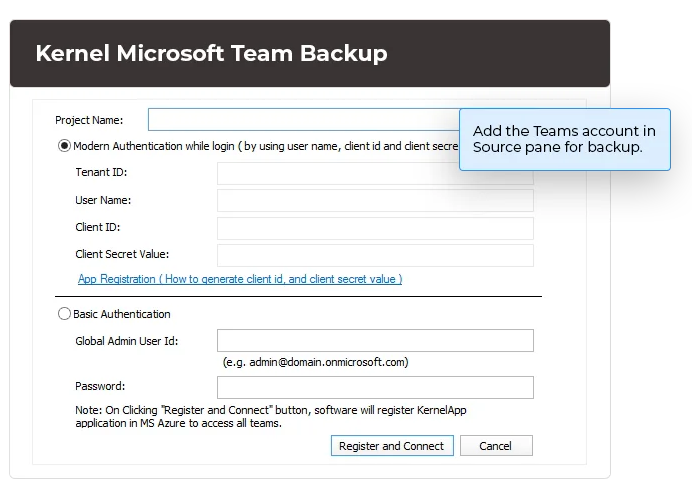
Add Microsoft Teams account:
To back up Microsoft Teams data, add the Teams account to the Source pane.
Apply filter option:
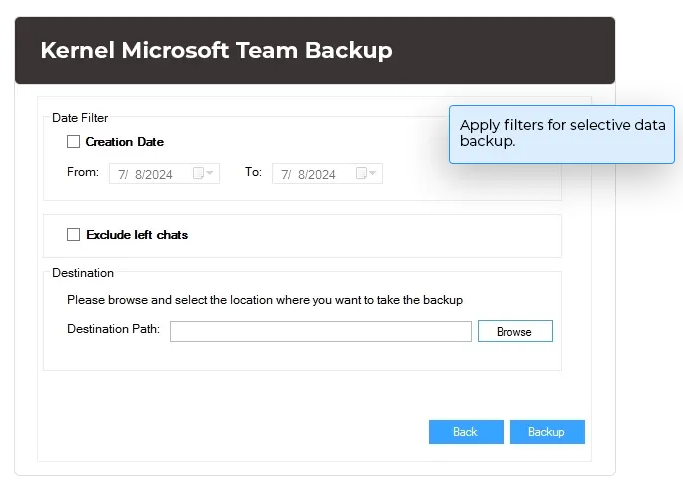
Apply filters on the basis of Creation date for selective data backup from Microsoft Teams.
Backup Teams data:
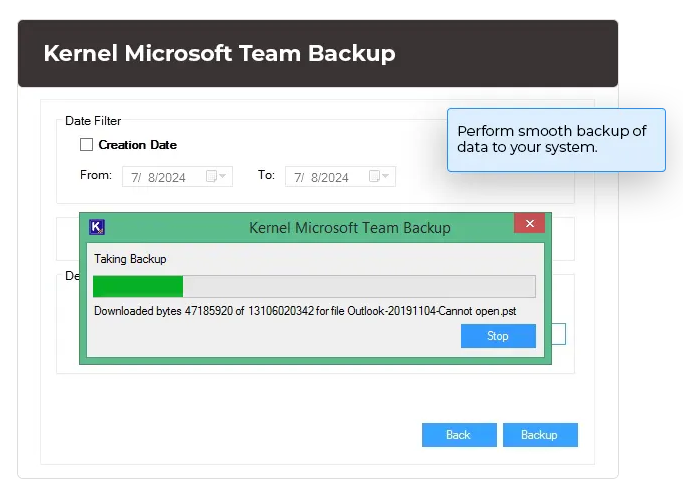
Perform backup of Teams data to your system at your preferred location.
Microsoft Teams Backup Software's key capabilities
Browse through the range of features that the Microsoft Teams backup utility to backup Teams chat, channel, and other components.
Microsoft Teams backup
Backup all components of Microsoft Teams including public and private channels, chats, files, notes, posts, members, permissions etc. With our Microsoft Teams Backup tool, you can save the backup data on your computer while protecting against data loss or corruption.
Teams Channel backup
Save entire data from Teams channels (standard, private, and shared) including conversations, files, messages, posts, and folders with safety and accessibility. The Microsoft Teams backup tool allows you to backup all or selective channels based on your requirement.
Post (Teams conversation) backup
Take an easy backup of all the teams conversations from Posts, including the files, images, links, and text shared within. All the post data is backed up in HTML file format, which is easily accessible on all devices.
Backup 1:1 chat
Store all the private conversations held in 1:1 chats of the users, keeping all the data intact. The tool accurately backup Teams chats. The conversations are preserved in separate folders with text in HTML files, while images or shared documents are preserved in the same format they’re shared.
Save Group chats
Allows you to backup group chats and conversations between multiple team members. All the messages, images, videos, and files shared during the conversation along with the chat history are preserved in the backup and stored in the HTML files.
Supports incremental/delta backup
Utilize the incremental backup feature in our Teams Backup tool to reduce confusion and avoid data duplication. With Kernel Microsoft Teams Backup, you can exclude items that have already been backed up, saving only the new data items. This feature allows faster Microsoft Teams chat backup by saving only new content.
Backup at specific location
Save data at a specific location in the same way as it’s available in Microsoft Teams. Data is organized in separate folders (labeled with Email ID and component name) within a main folder, labeled with the backup name and date. The tool also produces separate folders to isolate user messages after Teams chat backup.
Selective backup with filter option
Implement date filter to execute selective backups as per your requirements. With the creation date filter, you can take precise backups, and select to Exclude left chats, which allows skipping backup teams chat of the users who have left the conversation.
Compatible to all Windows
Compatible to all versions of Window OS including Window 365, 11, 10, 8.1, 8, 7, Vista, XP, 2000, 98, NT & 95 and Windows Server 2022, 2019, 2016, 2012, 2008 R2, 2008, 2003 R2, 2003 OS.
Import chat users using CSV
Simply fetch users with the help of a CSV file when you want to take backup of multiple chat users in Microsoft Teams. No need to add users one by one. You can also select to automatically fetch users from Microsoft Teams tenant.
Preview Teams components before backup
Preview the components of Teams within a tree-like structure before saving them to your local storage. With this feature, you can select or deselect an attribute of Teams if you want to add or remove it in teams chat backup respectively.
Migration supported

What data can you backup with Kernel Microsoft Teams Backup tool?
Find out what data you can backup from Microsoft Teams using our robust backup utility.
Teams
All the teams that connect and collaborate for work or other projects are backed up.
Channels
Backup all public and private channels with their users and all the content.
Tabs
All the custom and default tabs such as Files and Posts with their structure, and content are backed up.
Posts
Everything from the posts, including files, content, images (all formats), and text, are saved.
Files
All the files shared in Microsoft Teams including those shared in the channel, chats messages, and Files tab.
Chat Messages
All chat messages (group chat and 1:1 chat) are backed up along with the shared files, links, messages, etc.
Microsoft Teams Backup - Frequently asked questions
How to backup Microsoft Teams and Chat data using Kernel Microsoft Teams Backup tool?
Follow the given simple steps to take complete backup of Microsoft Teams and Chat:
Step 1: Launch Kernel Microsoft Teams Backup tool, and in the source pane, go to Microsoft Teams.
Step 2: Right-click on Microsoft Teams and select Add Teams.
Step 3: Enter the Project Name and choose the login type from the given options (Basic Authentication and Modern Authentication) and provide the necessary details.
Step 4: Once you provide the necessary details, click Register and Connect.
Step 5: Now, you can select Team and Chat users that you want to backup.
Step 6: To select chat users, mark the checkbox Chats (Group Chat, 1:1 Chat) and then tap on three dots (...) beside Fetch users to fetch chat users. Click Next.
Step 7: Go through the hierarchy of the selected teams and chat and then click Next.
Step 8: Now apply a date filter (if needed) and provide a destination to save the backup. Click Backup to start the process.
With this, the process of backup teams chat will begin, and you can find it at the destination you provided which is shown in a pop-up at the end of the process.
Where is the backup saved after completing the process?
When you backup Teams, you’re asked to provide destination path where you want to save the files. You can visit the location and find your files saved in different folders and sub-folders.
Can I perform backup of multiple chat users at once?
The tool allows you to add users with a CSV file or you can select to fetch automatically. Now, select the chat users and you can perform Microsoft Teams chat backup for all the intended chat users.
Does this tool allow taking backup of selected attributes from Microsoft Teams?
Yes, you can select from the hierarchical order, which is shown after selecting the teams. On the “Select Team and Chat users”, deselect the attributes you don’t want to proceed with and then click Next to perform Teams backup of the selected items from Teams.
Does this tool allow skipping backup of left chats?
With the “Exclude left chats” option, you can select to skip backup teams chat history of the users who have left the conversation. It allows excluding conversations from Teams chat backup that you no longer need.
How will I access the saved conversations of multiple users distinctly?
The tool creates separate folder to store messages of each user during Teams chat backup of more than one user.
Microsoft Teams Backup software
Prerequisites & recommendations
About software
Version: 25.1
Release Date: Jan 2025
Version support
Exchange Server: Exchange Server Online (Microsoft 365)/ 2019/ 2016/ 2013/ 2010/ 2007/ 2003/ 2000
Outlook: Outlook 2019/ 2016/ 2013/ 2010/ 2007/ 2003
SharePoint Servers: SharePoint 2013/ 2016/ 2019/ SharePoint Online (Office 365), SharePoint Server Subscription Edition, SharePoint Foundation 2013/ 2010, SharePoint Server 2010
Virtual Environments: Hyper-V Server, VMware ESX/ ESXi Server, Microsoft Virtual PC
System requirements
Hard Disk: 4 GB free space for the installation and data migration
Memory: Minimum 4 GB RAM
Processor: Intel® Pentium 4 Class or higher Processor
Operating System: Windows 365 (Cloud PC)/ 11/ 10/ 8 /7 Service Pack 1, Windows Server 2022/ 2019/ 2016/ 2012 R2/ 2012/ 2008 R2/ 2008/ 2003

© Copyright 2000-2025 COGITO SOFTWARE CO.,LTD. All rights reserved