|
|
|
|
|
|
|
Export Office 365 to PST tool to backup Office 365 mailboxes
1M+ Downloads
Export Microsoft 365 and Exchange data to PST without any MS Outlook installation. Use multiple filters to perform a complete or selective export of mailboxes (Primary, Archive & Shared), Public folders, and Groups.
190+COUNTRIES WORLDWIDE
20YEARS' EXPERIENCE
24x7CUSTOMER SUPPORT
What's new in Export Office 365 Mailbox to PST v25.0
Top use cases for Export Office 365 Mailbox to PST Tool

Backup all Office 365 data to multiple formats
Experience the ultimate convenience of storing all your Office 365 data with the Kernel Export Office 365 Mailbox to PST tool. In addition to emails, this Office 365 Export tool can backup Microsoft 365 data, including Primary, Archive, and Shared Mailboxes, Groups, and Public Folders. Choose from a wide range of output formats such as PST, MSG, PDF, EML, MHT, HTML, DOCX, or DOC to securely save data and access it whenever required.

Retain mailbox hierarchy in the new PST
When it comes to exporting Office 365 data, maintaining its original structure is necessary. Disorganized data leads to confusion, and you won't be able to find the right file at the right time. With the Kernel Export Office 365 to PST tool, your data's hierarchy and properties remain intact even in the new PST file, making it easily findable and accessible. You can avoid chaos while retaining original data.

Export all Exchange mailboxes
No matter where your data resides in Exchange, the Kernel Export Office 365 to PST is an efficient utility that allows users to export O365 Mailbox to PST all Exchange mailboxes. Whether it is On-premises, Hosted, or Online mailboxes, you can perform the same straightforward process and save it to your preferred output format. Your data's original structure and properties remain intact, ensuring a smooth transition from Exchange.
How to Export Office 365 Mailboxes to PST file?
Follow this step-by-step guide to export bulk Office 365 mailboxes to PST format easily
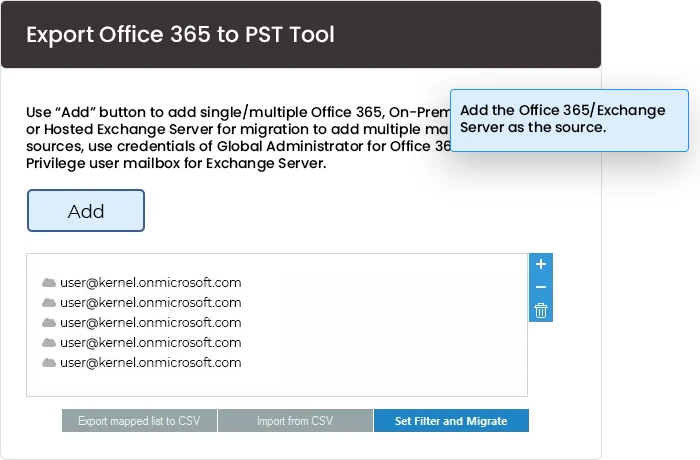
Step 1: Install and launch the tool. Select Backup and click on + Add. Choose a login method – Modern or Basic Authentication.
Step 2: Enter the login credentials and select Single Mailbox/ Office 365 Group to backup single mailbox.
Step 3: Select List all Mailboxes using above credentials to backup multiple mailboxes and click Get User Mailboxes(s). Select the required mailboxes and click Add.
Step 4: In the next window click Set Filter and Migration. Then select the migration type – Mailbox, Archive Mailbox, Public Folder and click Migrate.
Step 5: Apply the filters as per requirement and click I am OK, Start Migration.
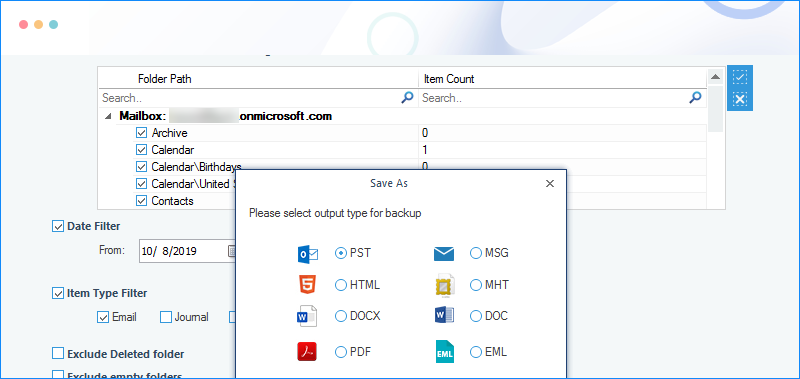
Step 6: Select the output type as PST. You can also choose to split output file into small & manageable PST files.
Step 7: Specify a location to save the PST file and click OK. Download the backup report on your system after the process is finished.
Export Office 365 Mailbox to PST Software Key Capabilities
Explore the prominent features of Kernel Export Office 365 to PST tool to understand its functionality better:
Export Office 365 mailboxes to your preferred format
Choose the format of your choice out of multiple output options, including PST, MSG, MHT, HTML, DOC, DOCX, PDF, EML, and more. The O365 PST export process involves 4 simple steps: Select Source, Apply Filters, Select Destination, and Migrate.
Innovative data filtering
Selective data backup is possible with intelligent filters such as Folders, Date Range, Item Type, Exclude Deleted folders, Exclude Empty folders, Save folder hierarchy, etc. Apply these filters to save only the required Office 365 & Exchange Server data.
Export Primary, Archive & Shared mailboxes, Public Folders, & Groups
The Export Office 365 Mailbox to PST tool is a one-stop destination to export Primary, Shared & Archive mailboxes, Public Folders, and Groups. While the O365 export mailbox process, format choice, and smart filters remain the same, you can export Office 365 Groups to PST when MFA is enabled.
Migrate Live Exchange & Hosted Exchange
The Export Office 365 to PST software ensures a seamless migration for Hosted and On-premises Exchange. Simply perform the export mailbox to PST from Office 365 process and save the mailbox data to your preferred format, including PST files.
Prevent exporting duplicate items
Avoid exporting duplicate items using the smart filter available in this Office 365 Export Mailbox to PST tool, saving you time and eliminating confusion. Only the additional items will be exported the second time.
Perform simultaneous exports
Run multiple Microsoft 365 to PST export cycles simultaneously without interfering and overlapping with each other. Experience a faster export export mailbox O365 process without wasting your time.
Skip time-taking items
Use the timeout feature to set a time limit from 2 to 20 minutes for the entire process. If large-sized items aren't exported on time, they get skipped, ensuring a smooth exporting process of the remaining Office 365 & Exchange server mailbox items to PST.
Automate export using CSV file
The Office 365 Export Mailbox to PST tool uses a CSV file to streamline the process. Create a CSV file with source and destination to export multiple Office 365/Exchange Server mailboxes automatically. This time-saving feature enhances productivity.
Save mailbox hierarchy in the PST folder
Preserving the hierarchy of your Office 365 and Exchange Server mailbox folders is the priority. The Export Office 365 Mailbox to PST tool allows you to save mailbox folders while maintaining their structure in a new PST folder, assuring data integrity throughout the export Office 365 PST process.
Export 10 items per folder with a trial
With the trial version of the Export Office 365 to PST tool, you can export 10 items from each Office 365 or Exchange Server mailbox folder to the PST file format. Explore the tool's functionalities, then consider upgrading to the full version.
Export Office 365 Mailbox to PST - FAQs
How to save Office 365 Groups to PST?
Here is the step-by-step guide to save Microsoft Office 365 Groups to PST file securely:
Step 1: Download and install Kernel Office 365 Backup and Restore software.
Step 2: Launch the software and click on Backup.
Step 3: Click Add and select Basic or Modern Authentication accordingly.
Step 4: Enter your Office 365 credentials and click on List all Mailboxes using above credentials.
Step 5: Click on Get Groups, select required Office 365 Groups, and click Add.
Step 6: Click on Set Filter and Migrate in the following window.
Step 7: Select mailboxes from Mailbox, Archive Mailbox, and Public Folder accordingly. Then, click the Migrate option.
Step 8: Select the filters as per requirement and click I am OK, Start Migration.
Step 9: Select output type as PST and select the split option & define a file size in GB to create multiple PST files of defined size.
Step 10: Specify a destination to save the PST file and click OK.
Step 11: The software will start and show migration process with real-time updates.
Step 12: Once the migration process is completed, save a detailed backup report on your system in CSV format by clicking Save report to CSV.
Can I still run this tool without having Outlook installed on my system?
Yes, you can. The Export Office 365 to PST tool runs efficiently without Outlook installation and saves the data to a PST file without any issues.
Does this tool work with all the Office 365 plans?
Yes, of course. Export Office 365 Mailbox to PST tool supports all Office 365 plans. So, you can export Exchange Online mailboxes from any Office 365 plan you currently use.
Where do the Office 365 mailboxes get saved after exporting to PST?
The user can decide the saving location, and the data will be saved in PST format on the hard disk.
Is there any option to remove unwanted folders from the backup?
Yes, you can remove the unwanted files using the folder selection option. Additionally, you can find options like Exclude Deleted folder and Exclude empty folders to skip backup of such folders.
What are the restrictions in the Trial Version of the software?
The trial version of the Export Office 365 to PST software includes all the features and options of the Full Version. However, it can only save 10 items per folder.
The number of mailboxes in my administrator ID is more than 200. Can I search for a specific mailbox?
To find any specific mailbox or item, you can use the "Search" feature of the tool. You just need to type the name of the mailbox when all the mailboxes are displayed after clicking the Get User Mailbox(es) button.
Software Prerequisites & recommendations
About Software
Version: 25.0
Release Date: Apr 25
License Type: Home, Corporate & Technician
Version Support
Outlook PST File: Office 365, 2019, 2016, 2013, 2010, 2007, 2003, 2002, 2000, 98 and 97
System Requirements
Hard Disk: 50 MB of disk space
Memory: 128 MB Minimum
Processor: Intel® Pentium Processor compatible (x86, x64) or equivalent
Operating System: Windows 365, 11, 10, 8.1, 8, 7, Vista, XP, 2000, 98, NT, 95 (FAT 16, FAT 32, NTFS, NTFS5) Windows Server 2022, 2019, 2016, 2012, 2008 R2, 2008, 2003 R2, 2003
What customers say about Kernel Export Office 365 to PST
Great to have this tool on my PC
Backs up all data in an Outlook PST file without much trouble. To safely backup their data, Office 365 users must have access to this important tool. It's great to have this tool on my PC.
Avery davis

© Copyright 2000-2026 COGITO SOFTWARE CO.,LTD. All rights reserved