|
|
|
|
|
|
|
IMAP migration tool for secure IMAP to IMAP migration
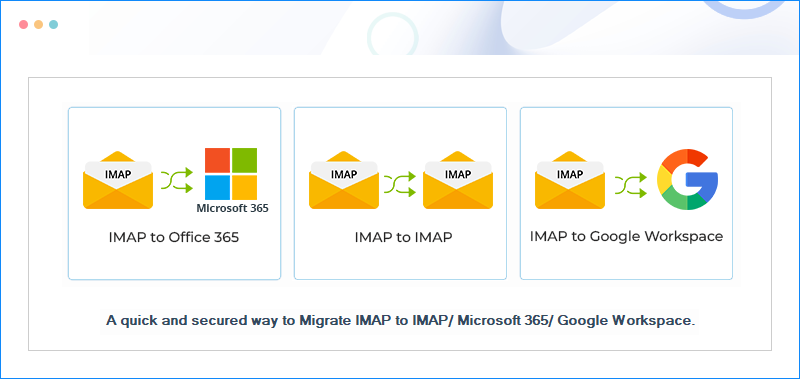
Migrate single/multiple mailboxes from one IMAP account to any other IMAP account through a quick, secure, and simple process. The presence of advanced features of the IMAP migration tool enables users with no prior experience to easily run the migration process and achieve exceptional results conveniently.
190+COUNTRIES WORLDWIDE
20YEARS' EXPERIENCE
24x7CUSTOMER SUPPORT
What's new in Kernel Migration for IMAP v24.2
Top Use Cases for Kernel Migration for IMAP
Cross IMAP Migration
Easily migrate emails from Gmail, Zoho, Yahoo, and other IMAP server to any other IMAP cloud-based email platforms like Outlook, Apple iCloud mail, etc. With this IMAP Migrator tool, you can easily execute mailbox migration to any IMAP account with complete data integrity.
Easy-to-Use Software
The IMAP Migrator tool comes with a simple user interface that allows both technical and non-technical users to migrate between two IMAP accounts without any prior technical expertise. Launch, connect source & destination, and start IMAP migration anytime with all properties intact.
Data Protection Guaranteed
Get a secure and safe environment to perform IMAP migration. The software provides guaranteed protection of data at the source & destination IMAP accounts without altering its key attributes. Besides, it offers an intelligent framework with a high success rate for smooth IMAP migration.
How to Migrate IMAP Emails?
Utilize the easy steps to connect with IMAP accounts, map them, and start migration.
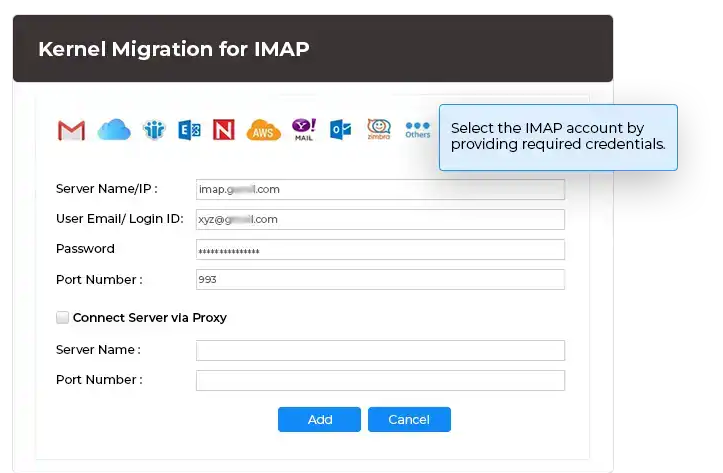
Select IMAP server:
Select and add the source and destination IMAP accounts using required credentials.
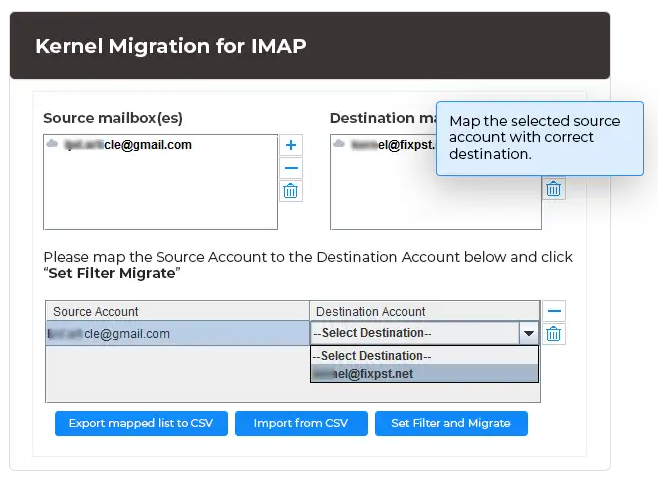
Map the mailboxes:
Map the source mailboxes with the destination carefully.
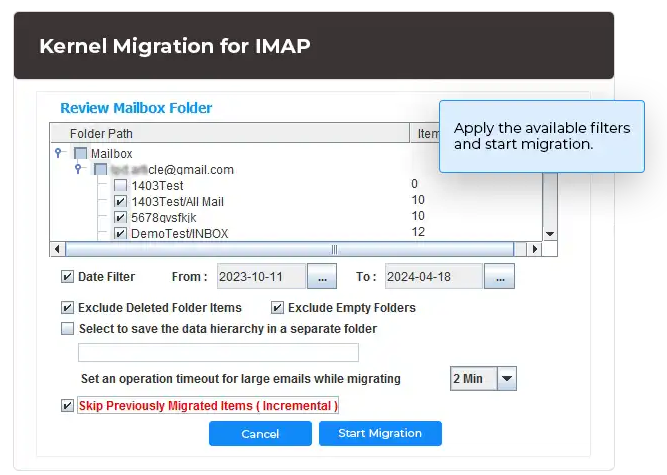
Migrate mailboxes:
Apply filters (if needed) and proceed with the IMAP to IMAP migration.
IMAP migration software's key capabilities
The IMAP to IMAP migration tool initializes easy and secure end-to-end migration using modern features.
Feasible IMAP to IMAP migration
Migrate single/multiple mailboxes or preferred data items from an IMAP account to another IMAP account. Specify the desired accounts using simpler login methods by providing the server details, email address, and port number.
Migrate complete mailbox
Use the IMAP mail migration tool to transfer all mailbox folders (such as Inbox, Drafts, Sent Items, Deleted Items, or custom folders) from IMAP to IMAP migration. The IMAP Migrator tool is designed to migrate the mailbox data while keeping all the folders with its structure and data safe.
Simpler IMAP-based connections
You can connect with any number of IMAP accounts, like Gmail, AOL, Yahoo, AT&T, GroupWise, Zoho, etc. For keeping the account secure, you can connect with using the App password and minimal account details like email address and server name.
Cutting-edge IMAP mailbox enumeration
Successfully obtain every data or folder from the source IMAP mailbox with the implementation of a self-enumeration process. Users can review the folders and data of fetched single/multiple mailboxes within the IMAP migration tool.
Integration of advanced data filters
Set up filters such as date, exclude deleted folders, exclude empty folders and skip migrated items to differentiate data before migration to enhance data quality. Review the mailbox folder to select/deselect specific data items or folders.
Migration using CSV file
Migrate multiple mailboxes at once by importing the CSV file to the IMAP migration tool. Download the CSV file from the system at the login page, input the details of source and destination accounts in the pre-defined columns. Then, upload it back.
Commence incremental migrations
Check the option of Skip Previously Migrated Items on the setup filter page in the Kernel Migration for IMAP tool. The filter excludes the already migrated data and data items from the mailbox.
Detailed preview of migration
Review the detailed status of your migrated data in the IMAP Migrator tool and verify the successful migration of every selected mailbox data. Also, the IMAP Migrator tool shows the real-time migration of the process of mailbox data one by one.
Bulk migration of mailbox
With the IMAP email migration tool, one can process a batch of mailboxes. The IMAP migration software efficiently migrates all emails and other contents of the mailboxes from one IMAP account to another without putting any restrictions on the number and size of the mailboxes.
Compatibility with different IMAP servers
Perform successful IMAP mail migration from several web-based IMAP servers, including Gmail, Yahoo, Outlook, AOL, Zoho, etc. The smart features incorporated within IMAP server migration tool allow a smooth transition from a wide range of IMAP servers.
IMAP to Office 365 migration
Migrate all mailbox folders and their data from IMAP to Office 365 and Exchange Server. Simply enter the IMAP server and Office 365 account credentials to log in, and you can migrate the data anywhere (archive mailboxes or public folders) in the selected destination.
Migrate IMAP to Google Workspace
Take mailboxes from all IMAP server to Google Workspace in a few simple steps. The IMAP to IMAP migration tool simplifies migrating the data to user mailboxes and Groups in the destination while preserving the initial hierarchy and data integrity. It also allows the transfer of multiple mailboxes simultaneously.
Explore IMAP to IMAP migration tool's benefits
Reliable migration
Securely migrate data of one IMAP mailboxes account to another IMAP mailbox account using the robust features of the tool.
Fast & simple process
Quickly migrate end-to-end IMAP data by easy mapping and quick filters to channelize quality Microsoft 365 IMAP migration.
Intact hierarchy
Find the hierarchy of migrated IMAP mailbox folders untouched and arranged in a systematic manner same as the source IMAP mailbox.
Trustworthy scans
Get the entire data of the selected IMAP mailbox account after the successful completion of the enumeration process within the IMAP migration tool.
Preview results
Check the status of every migrated item in the IMAP Transfer tool and check whether each selected folder from source IMAP mailboxes is migrated or not.
Operational time-out
Set-up the operational time-out commanding the IMAP mail migration process to abort the scanning of extra large files taking longer than the prescribed duration.
Frequently asked questions about IMAP email migration tool
What is the basic process of connecting with the specific IMAP server and how to migrate the emails?
The software connects with the server using Server name or the port number. Here is the complete process of the IMAP migration.
Step 1: In the home screen of tool, click on IMAP to IMAP to perform IMAP to IMAP migration.
Step 2: Click Add button in the source pane.
Step 3: Input either the server’s name or Server ID, then email address, and password. The default port number is available. But you can also utilize the help guide present in the right-hand side. Then, click Add.
Step 4: After connecting with source, click Add in destination pane.
Step 5: Input the same details of the destination account and click Add.
Step 6: After adding both accounts, map the accounts for accurate mapping.
Step 7: Apply the filters like date filter, exclude empty folders, exclude deleted folders, skip already migrated items, etc. Then, click Start migration.
Step 8: Let the IMAP Transfer tool complete the IMAP migration and after completion, there will be complete status of all the migrated items.
With this simple procedure, you can easily connect and migrate from one IMAP server to another via the IMAP to IMAP migration tool.
Can I connect with two different kinds of IMAP servers in Source?
Yes, you can connect with multiple types of IMAP server in both and destination. But you can login with a single kind of IMAP account at a time. You can add the second account later and proceed with Exchange IMAP migration.
Can I skip the mapping function?
You should not skip the mapping function as it helps to choose the correct destination for a respective source account.
I have moved all the emails from my Yahoo account to Gmail. Will new emails come to Gmail now?
The IMAP migration tool moves the existing emails from the source account. It does not configure for sending or receiving emails.
How many emails can I transfer in the trial version of the IMAP Migration software?
The trial version of the IMAP Migration software can migrate 10 items per folder. For moving more items, purchase the license.
Should I check the empty folders in the source account before Microsoft 365 IMAP migration?
The IMAP migration tool allows you to skip the empty folders from IMAP email migration. You should not check it in your account. The IMAP Transfer tool will take care of it.
I migrated the data from my account six months back. If I run the migration now, will it migrate the older items too?
You can choose to skip previously migrated items. Only the new data will go to the destination account.
Can I use this IMAP Migration tool to migrate IMAP to Gmail?
Yes, the IMAP to IMAP migration tool supports migrating from IMAP to IMAP, G Suite, and Office 365. You can select the mailboxes, perform user mapping, apply filters, and execute the easy migration process to the desired destination.
Is it possible to skip migrating deleted folder to the destination?
During Microsoft IMAP migration, when selecting filters, you can mark the checkbox “Exclude deleted folders.” Doing this will ensure that none of the deleted folders from IMAP (source) is involved in the IMAP Exchange migration.
How to generate an App password for a Google Workspace account?
First, you should enable the 2-step verification for your account. Then, follow the below steps:
Step 1: Sign into Gmail and go to ‘Security’.
Step 2: Choose ‘2-step verification’ under ‘signing in to Google.
Step 3: Choose ‘App passwords’ at the bottom of the page.
Step 4: Input the name of the application as it will help you in recognizing the app password for that password. Click Generate.
Step 5: Follow the remaining instructions and the app password will be a 16-character code. Copy it.
Step 5: Click Done.
Where can I find Client ID and Tenant ID for a Microsoft Office Account?
While performing IMAP to M365 IMAP migration, when you proceed with the modern authentication, the tool will ask to provide Tenant ID, Client ID, and Client Secret value. Here’s how can you locate it:
Step 1: Login to Azure portal and then go to App Registrations
Step 2: Click on All Applications and find the app whose Tenant and Client ID you’re looking for.
Step 3: Select the Overview tab, here on the right panel of the window, you will find the ID’s for modern authentication.
Step 4: Now, in the App Registration, click on Certificates & Secrets from the left pane and then you can find the Client Secret.
If there is no existing Client Secret, you can generate a new one specifying its description and duration after which it’ll expire. Once you get these credentials, enter them into the tool’s interface and proceed with the Office 365 IMAP migration.
What is the difference between port number 993 and 995?
The port number ensures that the connection with encrypted securely with SSL/TLS encryption. Port number 993 is for IMAP protocol and 995 refers to POP3 accounts.
IMAP Migration Software
Prerequisites & recommendations
About The Software
Version: 24.2
Release Date: July 2024
License Type: As per no. of mailboxes
Version Support
Office 365 (Microsoft 365): All plans, including Office 365 (Microsoft 365) Enterprise E1, E3, E5 & Exchange Online Plan 1, 2, Microsoft 365 Business Premium, Office 365 A1, Office 365 A3, Office 365 A5, Office 365 F1, and Office 365 Business Essentials.
Google Workspace: All plans and subscriptions for Google Workspace, Business, Enterprise, Essentials, Frontline, Individual, and Education.
IMAP Email Server: All IMAP servers, including Gmail, Microsoft Exchange Server, Zimbra, Dovecot, Courier Mail, Outlook/Hotmail, Yahoo Mail, Proton Mail, Bluehost, GMX Mail, Yandex Mail, FastMail, Mail.ru, Apple Mail Server, iCloud Mail, AOL Mail, Cyrus IMAP, MailEnable, hMailServer, Mail-in-a-Box, Apache James, Citadel, Kolab Groupware, MDaemon Email Server, Modoboa, Zentyal, Zoho Mail, Company IMAP Account, etc.
System Requirements
Hard Disk: 500 MB of disk space
Memory: 128 MB Minimum
Processor: Intel® Pentium Processor compatible (x86, x64) or equivalent
Operating System: Windows 365, 11, 10, 8.1, and older versions.
Windows Server 2022, 2019, 2016, 2012, 2008 R2/2008, 2003, R2/2003

© Copyright 2000-2026 COGITO SOFTWARE CO.,LTD. All rights reserved